Photo Resize in KB Online (10KB, 20KB, 50KB, 100KB, 200KB): The Only Guide You Need in 2026
Photo resize in KB online (10KB, 20KB, 50KB, 100KB, 200KB) is one of the most searched yet least explained tasks on the internet. You have a perfectly good photo on your phone, but a government portal, job application, college admission form, or visa website rejects it the moment you try to upload it — because the file size is a few kilobytes too large, or occasionally too small. The fix is straightforward once you understand the tools and the logic behind KB-based compression. This guide covers everything: what KB resizing actually means, why every major platform demands it, the best free online tools that handle exact targets like 10KB, 20KB, 50KB, 100KB, and 200KB, and a step-by-step walkthrough so your photo clears the upload check on the very first attempt.
What Does Photo Resize in KB Online (10KB, 20KB, 50KB, 100KB, 200KB) Actually Mean?
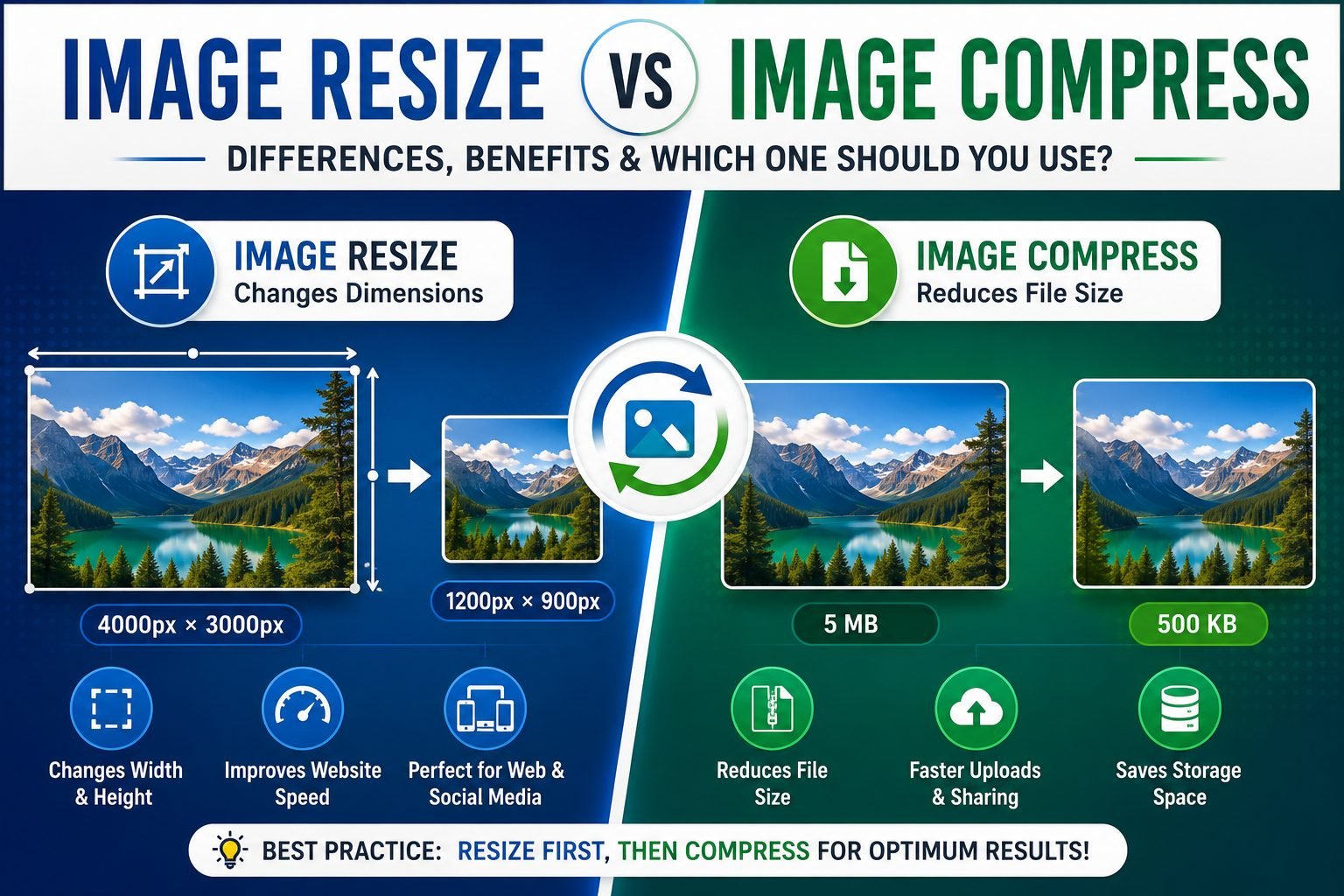
Before jumping into tools, it pays to understand the distinction between two things that look identical on the surface but are technically different: resizing and compressing.
Pixel dimensions refer to the width and height of your photo measured in pixels — for example, 600×600 or 1200×1200. These numbers describe how large the image appears on screen.
File size in KB refers to how much storage space the image file occupies — measured in kilobytes (KB) or megabytes (MB). This is what upload portals are checking when they say “maximum 50KB” or “file must be under 100KB.”
The critical point is that pixel dimensions and file size in KB do not move in lockstep. A 600×600 pixel image saved as a high-quality JPEG can weigh 150KB. The exact same 600×600 image saved with higher compression might weigh only 40KB — same dimensions, drastically different file size. That is why tools that only resize pixels will not always solve your problem. You need a tool that targets a specific KB output regardless of dimensions.
When websites, exams, or government portals ask you to upload an image “under 50KB” or “exactly 100KB,” they are not talking about the width and height of the photo — they mean the file size measured in kilobytes. Dimensions like 600×600 pixels or 1200×800 pixels do not always predict file size, because the final KB depends on image format, compression level, and content complexity.
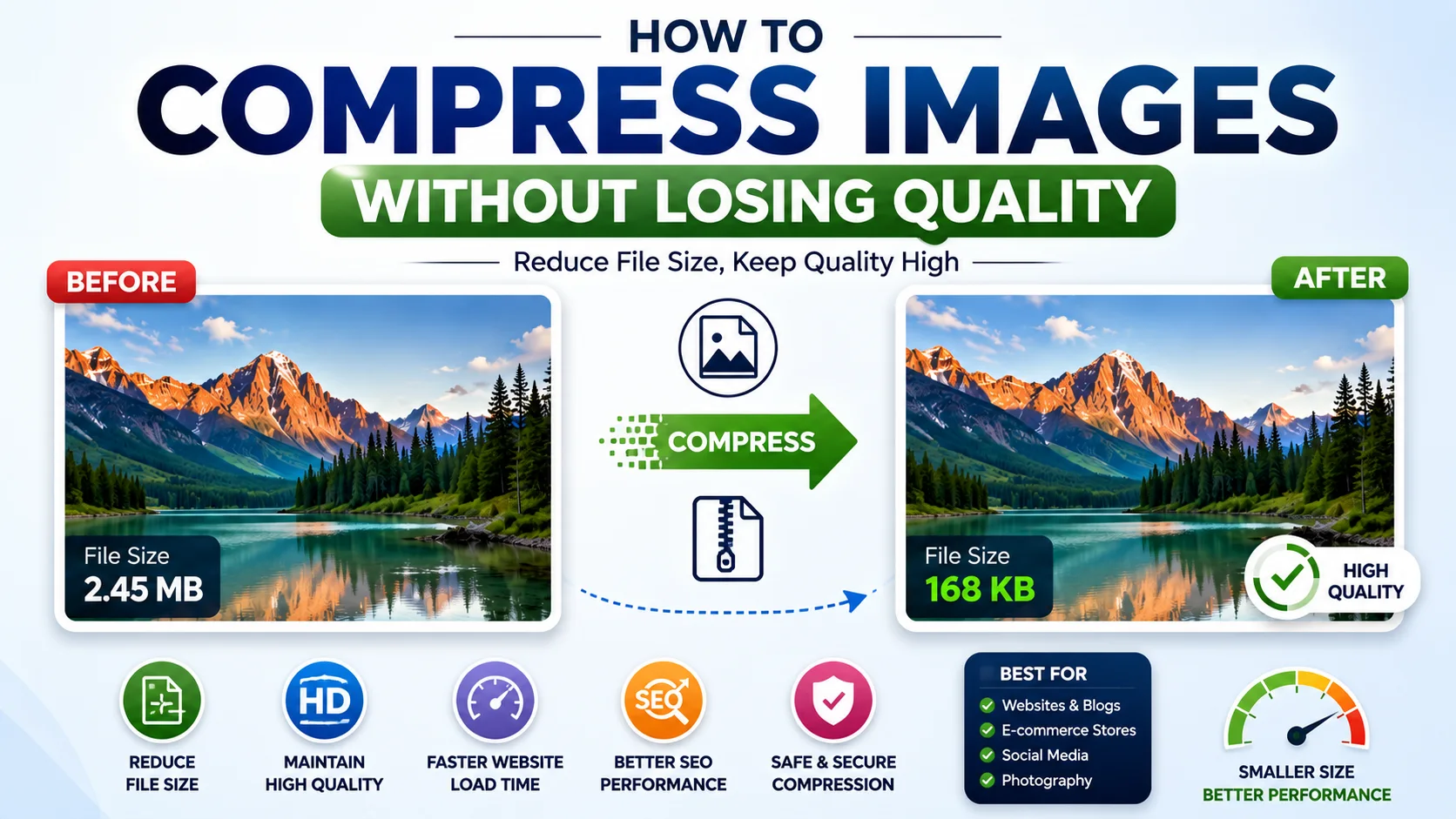
Photo resize in KB online (10KB, 20KB, 50KB, 100KB, 200KB) tools solve this by applying smart compression algorithms that hit a specific KB target rather than just shrinking pixel dimensions. You enter your target — say, 50KB — and the tool adjusts quality and compression until your file lands at or just below that number.
Why So Many Platforms Require a Specific KB File Size
Understanding why portals enforce KB limits helps you approach each situation with the right expectations.
Government and Visa Portals
The U.S. Department of State is a prime example. For U.S. visa applications submitted via Form DS-160 and the DV Lottery, the photo file must be a JPEG under 240KB with pixel dimensions between 600×600 and 1200×1200. The online passport renewal portal accepts files from 54KB to 10MB, but only in JPEG, PNG, HEIC, or HEIF format. Using the wrong file size for the wrong program is one of the most common causes of rejection, according to official guidance.
KB limits on government portals exist for several practical reasons:
- Server storage — processing millions of applications requires capping individual file sizes
- Automated image validation — the portal’s software runs pixel, format, and file-size checks in sequence; oversized files fail the check instantly
- Bandwidth efficiency — consistent file sizes reduce load on portal infrastructure during peak submission periods
Job Applications and Recruiting Portals
Many Applicant Tracking Systems (ATS) and HR portals enforce photo size limits between 20KB and 200KB for profile uploads and application attachments. Images over the limit are rejected outright; the applicant often receives a vague error message that does not explain what went wrong.
College and University Admission Forms
Online admission portals commonly require applicant photos within a fixed KB range — often 10KB to 50KB for the photo and a separate, even smaller limit for the signature image. Submitting a 3MB photo from your phone’s camera roll will be rejected immediately.
Websites and Blogs
Page load speed is directly tied to image file sizes. A single uncompressed photo from a modern smartphone can exceed 5MB. Compressing it to 100KB or 200KB reduces page load time significantly, which improves user experience and search rankings. Google’s Core Web Vitals scoring penalizes slow-loading pages, giving webmasters a concrete incentive to keep image files lean.
Email Attachments
Most free email providers cap total attachment size at 25MB, but individual photos from phone cameras can easily hit 10–15MB each. Compressing to 200KB or below lets you attach multiple images comfortably without hitting limits.
Photo Resize in KB Online (10KB, 20KB, 50KB, 100KB, 200KB): Best Free Tools in 2026
The market for KB-targeted photo resizers is crowded. Here are the tools that consistently deliver accurate results at specific KB targets with no software installation and no account required.
1. ImResizer — Best for Privacy-First KB Compression
Website: resize-image-size-in-kb
ImResizer is the standout tool for users handling sensitive documents. All processing happens locally in your browser — nothing is uploaded to any server. This matters enormously when you are resizing passport photos, ID scans, or immigration documents that contain biometric information.
Key features:
- Upload up to 12 images at once and compress all of them in a single session
- Accepts JPG, JPEG, PNG, and WebP; can convert between formats during compression
- Live preview before downloading so you can verify quality before committing
- Separate tool to increase image size in KB — useful when a portal rejects files that are too small
- No account required, no watermarks, completely free
The tool outputs a file at or below your specified KB limit every time. In practice, results typically fall within a few KB of the target, giving you the best possible quality while meeting the requirement.
Best for: Government forms, passport and visa photos, college admission uploads, any situation involving sensitive ID documents.
2. Simple Image Resizer — Best for Multiple Format Support
Website: resize-image-to-kb
Simple Image Resizer supports the widest format range among free tools: JPEG, JPG, PNG, WebP, HEIC, BMP, and GIF. This makes it particularly useful for iPhone users whose camera saves photos in HEIC format by default — a format that many government portals do not accept.
The three-step process is exactly as described: upload, choose target file size, resize and download. No software installation is needed on desktop or mobile.
Best for: iPhone users needing HEIC conversion alongside KB compression, users working with BMP or GIF files.
4. ImageResizer.com — Best for Speed and Scale
Website: imageresizer.com
ImageResizer.com has been operating since 2012 and has processed millions of images. It uses cloud infrastructure, meaning processing is fast even on slower connections or older devices. Images are uploaded via 256-bit encrypted SSL and automatically deleted within six hours.
The tool is browser-based, works on Windows, Linux, and Mac without any software, and carries no registration requirement.
Best for: Users on slow devices or connections who need cloud-side processing speed, bulk resizing sessions.
5. PicResize — Best All-in-One Editing and KB Reduction
Website: picresize.com
PicResize goes beyond pure KB compression. It combines resizing, cropping, rotating, flipping, and file-size reduction in a single interface. You can reduce the file size to a desired quality level or a specific disk size in kilobytes or megabytes, while also preparing photos for specific social platforms like Facebook, LinkedIn, Twitter, or YouTube.
If you need to crop your photo to the correct aspect ratio and then compress it to a KB target in one session — a common requirement for government photos — PicResize handles both steps without switching tools.
Best for: Users who need to crop and compress in one session, social media photo preparation.
Photo Resize in KB Online (10KB, 20KB, 50KB, 100KB, 200KB): Which Target Do You Need?
Not all KB targets are created equal. Here is a practical breakdown of what each common size means in terms of visual quality and where it is typically required.
10KB — Extremely Compressed
A 10KB photo is the most aggressively compressed target in common use. At this size, a standard passport-style photo will show visible compression artifacts, reduced color depth, and some softening of fine details. It remains recognizable and usable for many form submissions, particularly for signature images where the file size ceiling is very low.
Typical use cases:
- Scanned signature files for exam registration portals
- Very old government portals with strict legacy size limits
- Thumbnail images for web directories
Format tip: JPEG is the only realistic format at 10KB. PNG at this size would be unacceptably degraded.
20KB — Heavily Compressed but Functional
At 20KB, a headshot photo is compact but generally passes quality checks on most automated portals. The face remains clearly identifiable, though background details and hair texture will show compression. This is a common ceiling on competitive exam admission portals and some older job application systems.
Typical use cases:
- Competitive exam admit cards and hall tickets
- Some state government portal photo uploads
- Low-bandwidth web thumbnails
Format tip: JPEG at medium-low quality. Convert PNG to JPEG before compressing to hit this target more cleanly.
50KB — The Most Common Government Portal Target
50KB is the sweet spot used by the largest number of government and institutional portals. It provides enough quality for a passport-style headshot to pass biometric review while remaining light enough to meet server constraints.
Typical use cases:
- Federal and state government form uploads
- College and university admission photo submissions
- Job application portal profile photos
- Scholarship application forms
Format tip: JPEG works excellently at 50KB for photos. A 600×600 pixel headshot at JPEG quality 75–80% typically lands between 40KB and 65KB, making this target easy to hit without visible quality loss under normal viewing conditions.
100KB — Standard for Professional and Immigration Documents
100KB offers noticeably better image quality than 50KB and is the target specified by many professional licensing portals, immigration forms, and employer portals. At 100KB, a JPEG headshot retains clean facial detail, natural skin tones, and crisp edges at 600×600 to 800×800 pixels.
Typical use cases:
- Professional certification and licensing applications
- Embassy and consulate document uploads (some countries)
- LinkedIn profile photo optimization
- Resume photo attachments
- Online exam center photo verification systems
Format tip: JPEG at 80–90% quality for a 600×600 photo typically lands near 80–120KB, making this an achievable target with minimal quality compromise.
200KB — Near-Full Quality for Official Document Submissions
200KB is on the generous end of common KB targets and delivers near-original quality for most headshot photos. It is the standard cited by several immigration systems for secondary document uploads and some scholarship portals that want high-quality photos for printed certificates.
For context on U.S. government photo requirements: the online passport renewal portal accepts files from 54KB up to 10MB, while U.S. visa applications require files of 240KB or smaller. A photo targeted at 200KB fits comfortably within both requirements.
Typical use cases:
- U.S. visa applications (DS-160) — must be under 240KB
- Immigration and naturalization document uploads
- Official scholarship and fellowship applications
- Organization membership profile systems
Format tip: At 200KB, JPEG at high quality (85–95%) maintains full sharpness. This target is forgiving enough that most tools hit it without any noticeable quality degradation.
Step-by-Step: How to Resize a Photo to an Exact KB Online
This walkthrough applies to virtually any free tool listed above. The process is consistent across platforms.
Step 1 — Identify the Exact Requirement Before Touching Any Tool
Read the photo requirement on the portal carefully before opening a resizer. Write down:
- The maximum file size in KB (e.g., “under 50KB” or “between 20KB and 100KB”)
- The required pixel dimensions, if specified (e.g., “600×600 pixels”)
- The required file format (e.g., “JPEG only” or “PNG or JPEG”)
- Any additional requirements (e.g., “white background,” “plain background,” “no glasses”)
Using the wrong file size for the wrong program is one of the most common causes of rejection on government portals. Spend 60 seconds reading the spec sheet before spending 10 minutes resizing only to have it rejected anyway.
Step 2 — Start With the Highest Quality Version of Your Photo
Always begin from the original photo — the full-resolution file from your camera or phone — not a previously compressed copy. Each time a JPEG is re-compressed, it loses additional quality. Starting from the original and compressing once to your target KB produces far cleaner results than compressing a compressed file.
If you have saved multiple copies of a photo at different sizes, use the largest one as your starting point.
Step 3 — Crop First If Needed
If the portal requires specific pixel dimensions or a specific aspect ratio (square, 4:3, etc.), crop the photo first using a crop tool before running KB compression. Cropping changes the canvas and can significantly reduce file size on its own. Some tools like PicResize handle both crop and compression in one session.
For passport and visa photos specifically, the background, head positioning, and framing must meet official specifications before you worry about KB size.
Step 4 — Open Your KB Resizer and Upload the Photo
Navigate to your chosen tool. Click “Select Image,” “Upload,” or drag and drop your photo into the tool’s upload area. Most tools accept JPG, JPEG, PNG, WebP, and increasingly HEIC.
Step 5 — Enter Your Target KB Size
Type the KB target from your portal (e.g., “50” for 50KB). Some tools offer preset buttons for common targets — 10KB, 20KB, 50KB, 100KB, 200KB — which speed up the process when you already know your exact number.
If the portal specifies a range (e.g., “between 20KB and 100KB”), target the middle or upper portion of the range. A photo compressed to exactly 50KB will meet a “between 20–100KB” requirement comfortably.
Step 6 — Preview Before Downloading
Most quality tools show a before/after preview or an estimated output quality rating before you commit to the download. Check that the photo looks acceptable — the face is clear, the text is readable if present, and there are no obvious blocky compression artifacts.
For very aggressive targets like 10KB or 20KB, some quality trade-off is unavoidable, but the algorithm should prioritize preserving visual clarity as much as possible.
Step 7 — Download and Verify
Download the compressed photo. Before uploading it to the portal, verify the output:
- Right-click the downloaded file → Properties (Windows) or Get Info (Mac) to confirm the file size is within the required range
- Open the file in an image viewer to confirm it looks acceptable
- Check the file format (JPEG, PNG, etc.) matches what the portal requires
Step 8 — Upload to the Portal
Upload the verified file to the portal. If the system accepts it without an error, the process is complete. If you get a “file too large” error despite targeting the right KB, try reducing your target by 10–15% (e.g., target 42KB instead of 50KB), as some tools land a few KB above the stated target.
Photo Resize in KB Online (10KB, 20KB, 50KB, 100KB, 200KB): Format Tips That Make a Real Difference
The image format you choose affects how easily you can hit a KB target without visible quality loss.
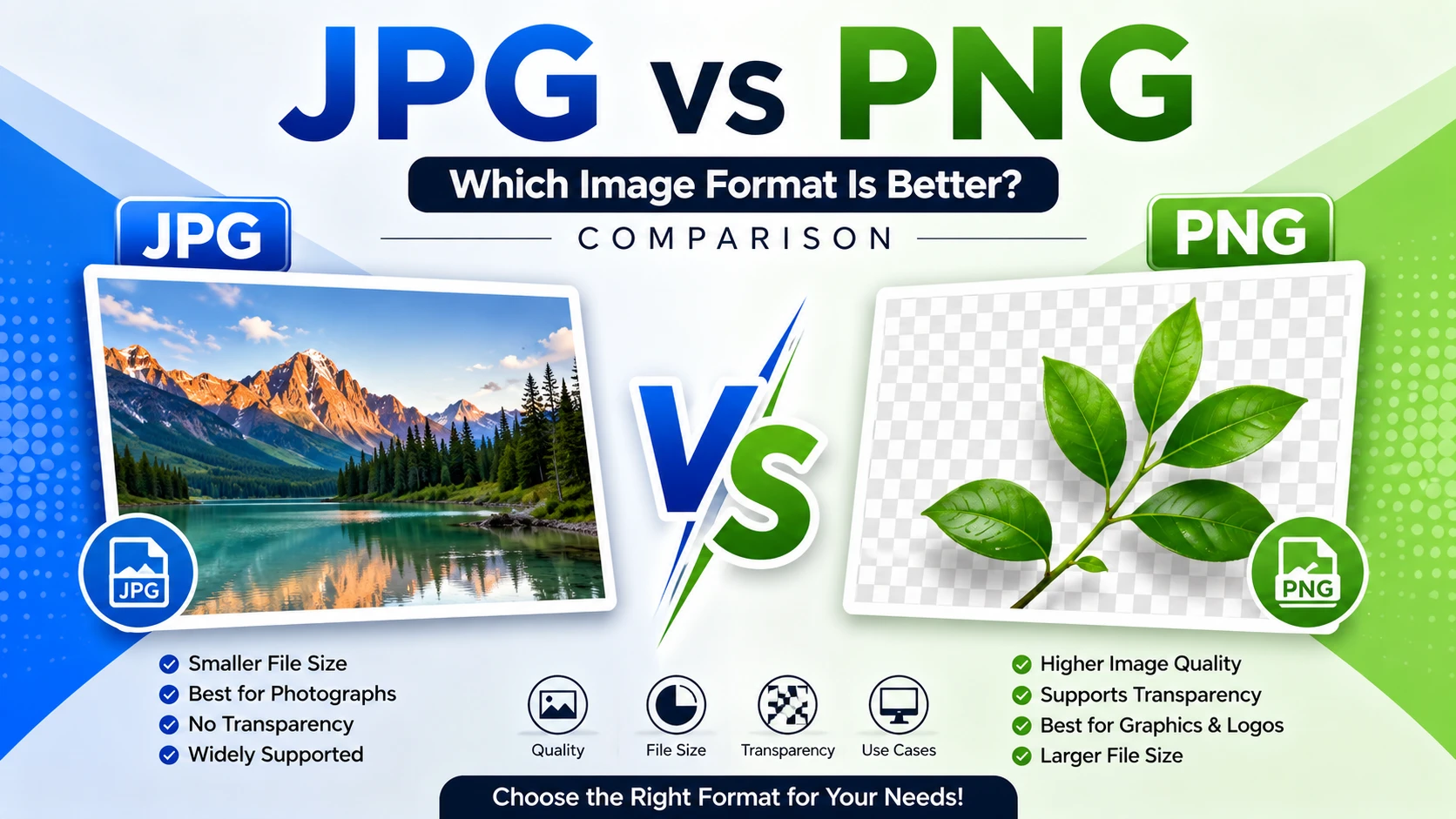
JPEG vs. PNG for KB Compression
JPEG is the best default format for photos. It uses lossy compression that is highly effective at reducing file size while maintaining visual quality that the human eye accepts easily. A headshot photo at 50KB in JPEG looks significantly better than the same photo at 50KB in PNG.
PNG uses lossless compression, which preserves every pixel perfectly but produces much larger file sizes for photographic content. PNG is the right choice for logos, text graphics, and illustrations with flat colors or transparent backgrounds — not for photos being compressed to tight KB targets.
The practical rule: if you are resizing a photo of a person (passport photo, profile photo, headshot), use JPEG. If the portal requires PNG specifically, use a KB tool that converts JPEG to PNG during export and accepts the size trade-off.
HEIC — Convert Before Compressing
iPhones save photos in HEIC format by default. Most government and institutional portals do not accept HEIC uploads, even though the format is technically superior to JPEG in compression efficiency. Convert HEIC to JPEG before or during the KB compression step. Tools like Simple Image Resizer handle this conversion natively alongside KB resizing.
WebP — Emerging but Not Universally Accepted
WebP delivers excellent file sizes at equivalent visual quality to JPEG and is now supported by all modern browsers. However, most official portals — government forms, visa applications, university admissions — have not yet updated their validators to accept WebP. Until acceptance widens, stick with JPEG for portal submissions.
Common Mistakes That Get Photos Rejected
Knowing what trips people up prevents frustrating repeat submissions.
Compressing a compressed file. Never run KB compression on a photo you have already compressed. Each JPEG re-save degrades quality. Always start from the original file.
Forgetting the format requirement. A photo compressed to exactly 50KB in PNG may be rejected by a portal that only accepts JPEG. Format and KB size are both checked.
Confusing KB and pixel dimensions. Resizing from 4000×3000 to 600×600 pixels reduces file size significantly — but the resulting file may still be 200KB or 300KB, not 50KB. Pixel resize and KB compression are separate operations.
Not checking the output file size. Some tools produce files slightly above or below the stated target. Always verify the downloaded file size before uploading.
Sending too small a file. Some portals reject photos below a minimum KB threshold because very small files are often low-resolution or heavily compressed. If a portal specifies a range like “between 50KB and 200KB,” do not compress to 10KB.
Cropping after compression. If you compress first and then crop, you force the tool to re-process an already-compressed file. Crop first, compress second.
Photo Resize in KB Online (10KB, 20KB, 50KB, 100KB, 200KB): U.S. Portal Quick Reference
Here is a practical reference table for common U.S. and international submission contexts.
| Platform / Form | Required KB Range | Format | Notes |
|---|---|---|---|
| U.S. Visa (DS-160) | Under 240KB | JPEG only | 600×600 to 1200×1200 px |
| U.S. Online Passport Renewal | 54KB – 10MB | JPEG, PNG, HEIC, HEIF | White background required |
| DV Lottery (Diversity Visa) | Under 240KB | JPEG only | Square crop, 600×600 px min |
| USCIS Forms (I-485, N-400, etc.) | Photos taken at ASC | N/A | Self-submitted photos no longer accepted |
| LinkedIn Profile Photo | Under 8MB | JPEG or PNG | Optimal at 400×400 px |
| Common Job Portal Upload | 20KB – 200KB | JPEG or PNG | Varies by platform |
| University Admission Photo | 10KB – 50KB | JPEG | Check each institution’s portal |
| Email Attachment | Under 2MB per photo | Any | Compress to 200KB for safe sharing |
For the official U.S. passport and visa digital photo requirements, always verify directly at travel.state.gov before submitting, as specifications can be updated between application cycles.
Privacy and Security: What Happens to Your Photo When You Use an Online Tool?
This is a legitimate concern, especially when resizing passport photos, Social Security card scans, or immigration documents. Here is how the major categories of tools handle your data:
Browser-side processing (most private): Tools like ImResizer, PhotoKBConverter, and PhotoResizerInKB.com run the compression algorithm entirely inside your browser using JavaScript. Your image is never transmitted to any server. This is the safest option for sensitive identity documents.
Server-side processing with auto-deletion: Tools like ImageResizer.com upload your photo to their cloud infrastructure for processing, then automatically delete it within a defined period (typically 6 hours). They use encrypted SSL connections for transmission. This is acceptable for non-sensitive photos but riskier for ID documents.
Best practice: For any photo that contains biometric data — your face, a government ID, a passport — use a browser-side tool that explicitly states your image is processed locally and never uploaded. ImResizer and PhotoResizerInKB.com both confirm this explicitly in their documentation.
Photo Resize in KB Online (10KB, 20KB, 50KB, 100KB, 200KB): Frequently Asked Questions
Can I resize a photo to an exact KB without losing quality? For moderate targets like 100KB or 200KB, yes — a quality JPEG from a modern phone compressed to these targets is virtually indistinguishable from the original under normal viewing conditions. For aggressive targets like 10KB or 20KB, some quality trade-off is unavoidable, but smart compression algorithms minimize the visible impact by preserving facial detail and critical areas while reducing background complexity.
Which is better for KB compression — JPEG or PNG? JPEG is better for photographs. PNG is better for graphics, logos, and images with text. Converting a PNG photo to JPEG before compressing to a low KB target produces a significantly cleaner result.
Do I need to install any software to resize photos by KB online? No. Every tool listed in this guide runs entirely in a web browser on any device — Windows, Mac, Android, or iOS. There is no download, no installation, and no account creation required for basic KB compression.
What if the portal rejects my photo even after hitting the right KB size? Check the other requirements: pixel dimensions (must fall within the stated min and max), file format (must be the accepted type), color mode (must be color, not grayscale), and background (many portals require plain white or light backgrounds). A technically correct KB size does not override failures in other categories.
Can I resize multiple photos at once to a specific KB? Yes. Tools like ImResizer support batch uploads of up to 12 images at once. Upload all photos, set your KB target, and download a compressed set in one session.
What is the difference between compressing and resizing a photo? Compressing reduces the file size in KB by applying quality adjustments to the JPEG data without necessarily changing the pixel dimensions. Resizing changes the pixel width and height, which indirectly reduces file size but may not hit a precise KB target. For portal submissions, you often need both: resize to the correct pixel dimensions, then compress to the required KB.
Is it safe to upload my passport photo to an online KB resizer? Use a browser-side tool that processes images locally in your browser and never uploads to a server. ImResizer, PhotoKBConverter, and PhotoResizerInKB.com all offer this. Avoid server-based tools for sensitive biometric documents.
Conclusion: Make Photo Resize in KB Online (10KB, 20KB, 50KB, 100KB, 200KB) Work Every Time
The photo resize in KB online (10KB, 20KB, 50KB, 100KB, 200KB) task trips up millions of applicants, website owners, and professionals every day — not because the process is inherently difficult, but because most people do not realize that pixel dimensions and file size in KB are two separate things that require two separate solutions.
The framework is simple: identify your exact KB target from the portal, start from the highest quality version of your photo, crop to the correct dimensions first if required, then use a browser-side KB compression tool to hit your exact target. Download, verify the file size, verify the format, and upload.
For U.S. government submissions including DS-160 visa applications, the requirement is under 240KB in JPEG format with square dimensions between 600×600 and 1200×1200 pixels. For most job portals and university admissions, the range falls between 20KB and 100KB. For web optimization, 50KB to 200KB covers the vast majority of practical use cases.
Every tool listed in this guide is free, requires no software installation, and handles the common KB targets that appear on portals worldwide. The best tool for sensitive documents — passport photos, visa applications, ID uploads — is a browser-side processor like ImResizer or PhotoResizerInKB.com, where your image never leaves your device.
Stop letting KB limits turn a five-minute task into a twenty-minute frustration. Use the right tool, follow the steps, and get your photo accepted on the first try.
Note: File size requirements on government portals and institutional websites are updated periodically. Always verify the current specifications directly on the official portal before submitting your documents.