Resize Image to 50 KB Online for Free: The Complete Step-by-Step Guide
If you need to resize image to 50 KB online for free, you are in the right place. Whether you are filling out a government job application, submitting documents to a university portal, uploading a profile photo to a professional site, or simply trying to lighten the load on your website, hitting that exact 50 KB file size target is a challenge millions of Americans face every single day. This guide walks you through every method, every tool, and every tip you need to get it done quickly, without paying for software, and without sacrificing more image quality than necessary.
Why You Need to Resize Image to 50 KB Online for Free
Before jumping into tools and techniques, it helps to understand why this specific file size limit comes up so frequently. The 50 KB ceiling is especially common in the following situations in the United States:
Government and exam portals — Many federal and state job application systems, civil service exam portals, and agency registration pages enforce strict image upload limits. A 50 KB maximum for a photo or signature file is one of the most common restrictions you will encounter on these platforms.
College and university admissions — Several online application systems used by U.S. colleges and universities cap uploaded photos and supporting documents at 50 KB to keep their databases manageable.
Professional licensing and certification sites — Boards and licensing authorities that handle applications for teachers, nurses, real estate agents, and other licensed professionals often impose 50 KB limits on headshots and scanned documents.
Email and corporate communication — Many corporate email servers apply attachment size limits, and teams that send bulk communications often need to compress images to 50 KB or smaller to avoid delivery failures.
Web performance and SEO — For web developers, bloggers, and small business owners, reducing image file sizes to 50 KB or below meaningfully improves page load speed, Core Web Vitals scores, and mobile performance — all of which directly affect Google search rankings.
In every one of these scenarios, the ability to resize image to 50 KB online for free without installing any software is a genuine time-saver.
What Controls an Image’s File Size?
To successfully hit a 50 KB target, you need to understand the three variables that determine how large an image file actually is:
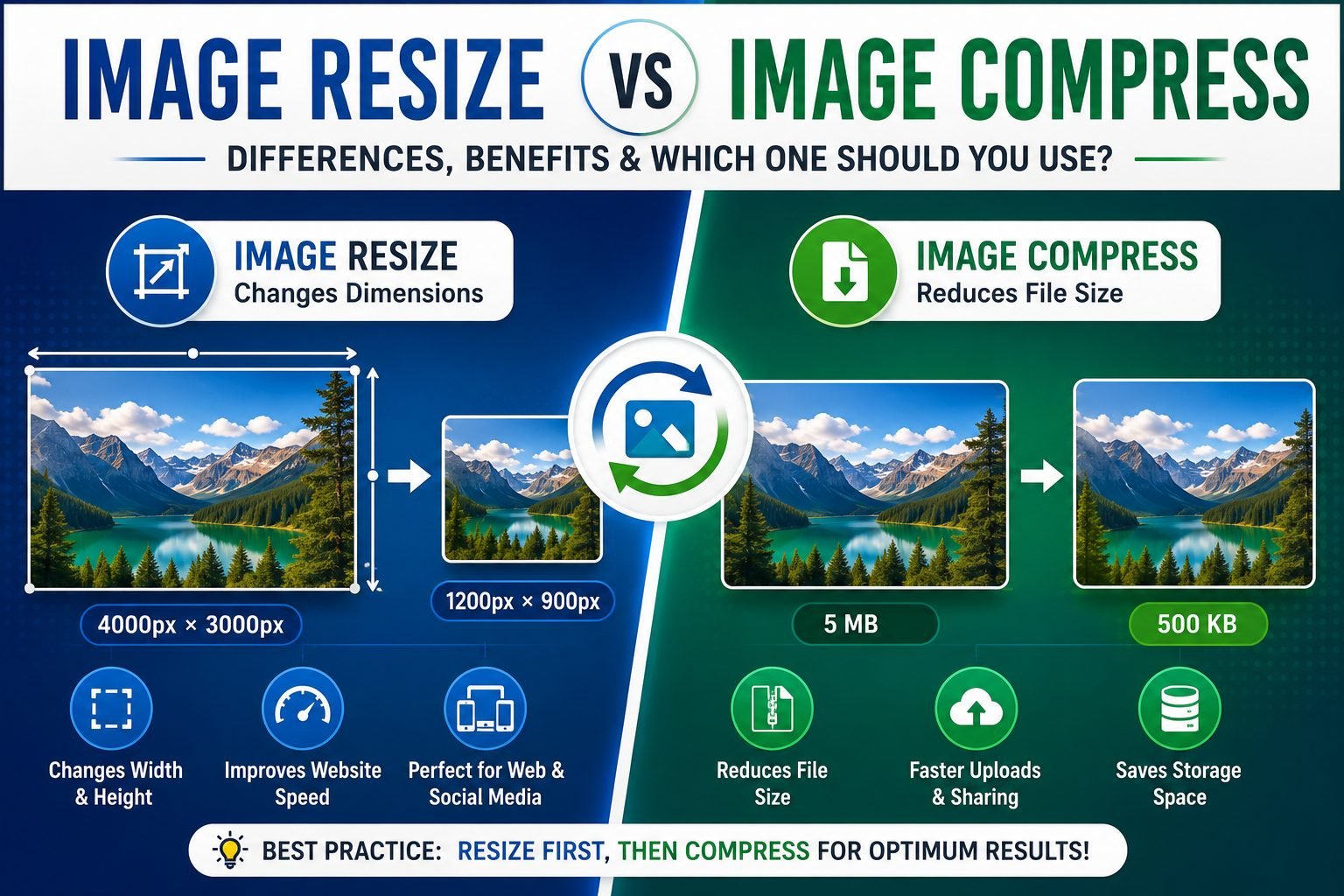
1. Pixel Dimensions (Width × Height) A photo taken on a modern smartphone might measure 4,000 × 3,000 pixels, producing a file that is several megabytes large. Reducing those dimensions — say, to 800 × 600 pixels — dramatically cuts the file size even before any compression is applied.
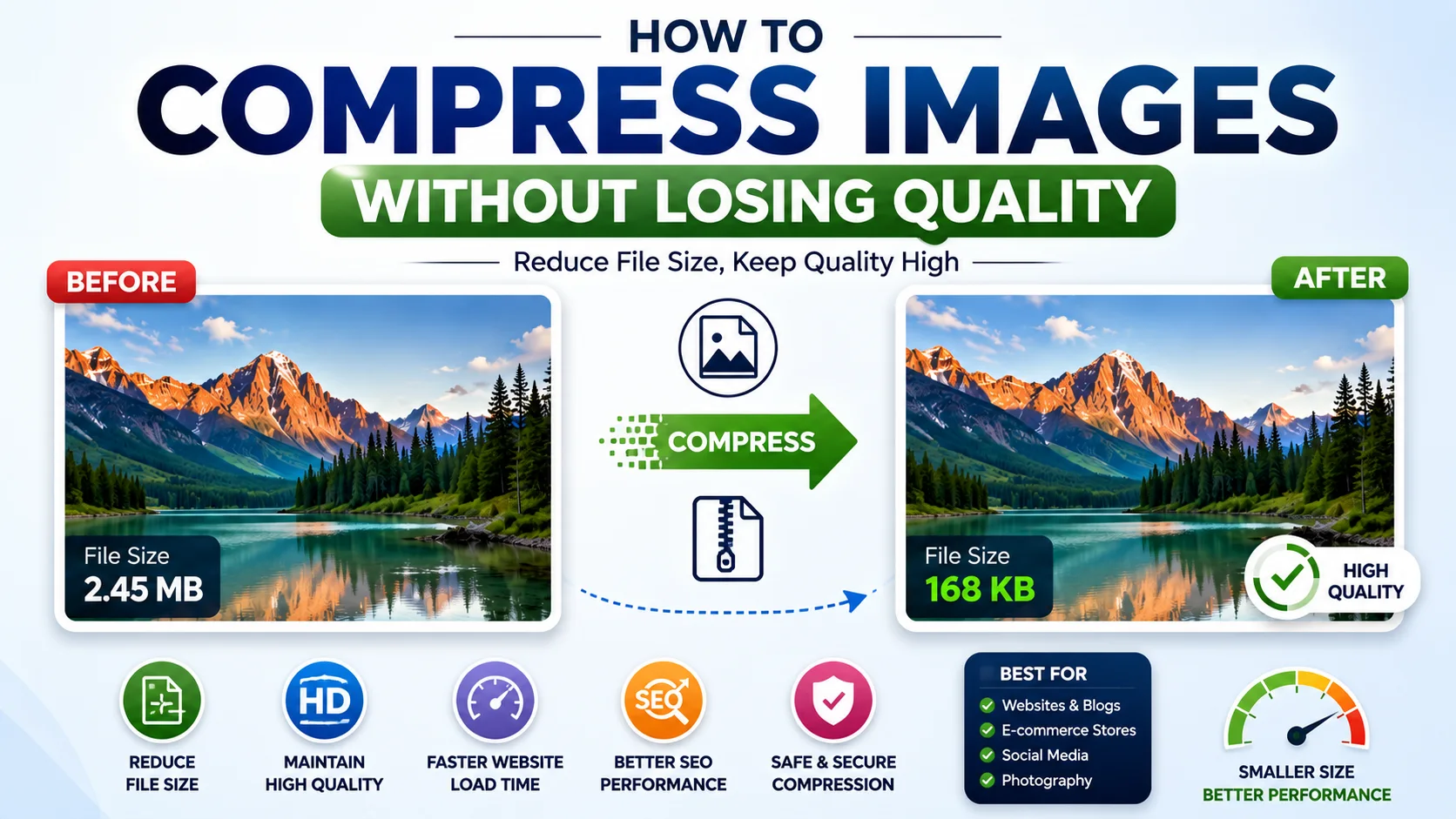
2. Compression Level and Quality Digital image formats like JPEG allow you to control the trade-off between visual quality and file size. A JPEG exported at 90% quality looks nearly identical to the original but is smaller. At 50% quality, it is much smaller but may show visible compression artifacts. Most free online tools let you set a specific target size in KB and automatically find the right quality level.
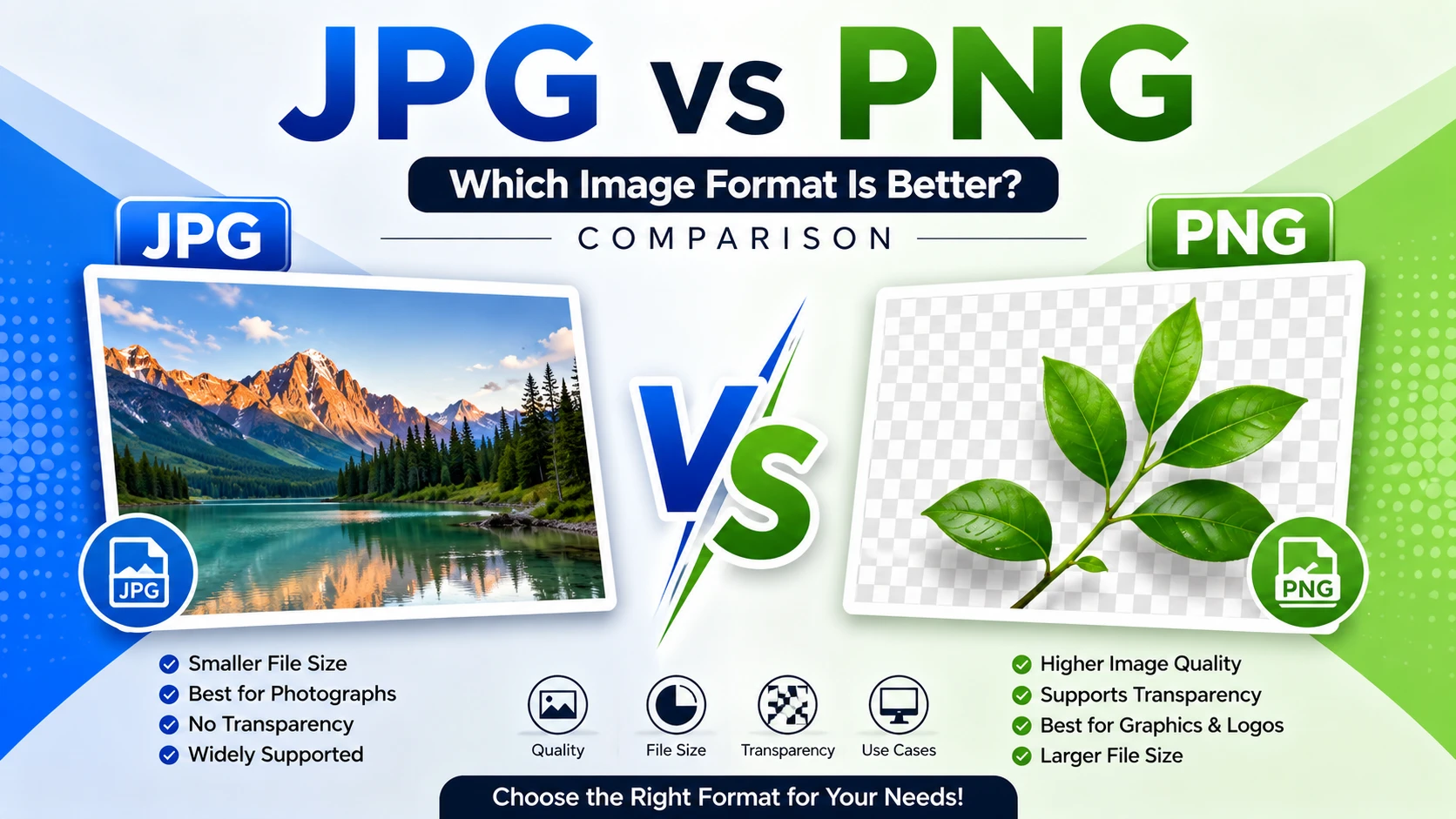
3. File Format JPEG is the most efficient format for photographs and naturally produces smaller files. PNG is lossless and better for screenshots, logos, and images with text, but tends to produce larger files. WebP, developed by Google, often produces files 25–35% smaller than JPEG at similar quality levels and is widely supported by modern browsers. Choosing the right format before you compress can make the difference between hitting 50 KB easily and struggling to get there without quality loss.
Understanding these three levers is what makes it possible to reliably resize image to 50 KB online for free regardless of what kind of image you start with.
How to Resize Image to 50 KB Online for Free: Step-by-Step
Here is the universal workflow that applies to virtually every free online image resizing tool available today:
Step 1 — Choose a reliable free tool Open your browser and navigate to a trusted free image compression and resizing tool. Several strong options are listed in the next section. No login, no software download, no credit card required.
Step 2 — Upload your image Click the upload button or drag and drop your file directly onto the tool’s interface. Most tools accept JPEG, PNG, WebP, HEIC, BMP, and GIF files. If you are uploading a very large file — say, a 5 MB smartphone photo — the tool will need a few seconds to process it.
Step 3 — Set your target file size Look for a field labeled “Target Size,” “Compress to KB,” or “Resize to KB.” Type in 50 (for 50 KB). Some tools express this as “0.05 MB” — both mean the same thing. If the tool does not offer a KB-specific target, use its quality slider and manually download and check the file size until you land at or below 50 KB.
Step 4 — Let the tool compress and resize The tool will analyze your image and automatically adjust the quality level, and sometimes the dimensions, to bring the file as close to your 50 KB target as possible. This usually takes a few seconds.
Step 5 — Preview the result Before downloading, zoom in on the preview image to check for visible compression artifacts — blurring, color banding, or pixelation. If the quality looks unacceptable, you may need to reduce the dimensions first and try again, which will allow the compressor to reach 50 KB at a higher quality setting.
Step 6 — Download your file Once satisfied with the result, click the download button. Your browser will save the compressed file to your local downloads folder. You are done — no account creation, no watermarks, no fees.
This is the core workflow every time you need to resize image to 50 KB online for free, and it works from any device — desktop, laptop, tablet, or smartphone.
Best Free Tools to Resize Image to 50 KB Online for Free
The following tools are among the most reliable, widely used, and genuinely free options available to U.S. users as of 2026:
1. Image Resizer Kit (imageresizerkit.in)
A purpose-built tool designed specifically for users who need to hit precise KB targets. It supports JPEG, PNG, and WebP formats and allows you to type in an exact file size target. The interface is clean, no login is required, and results are delivered quickly. An excellent first stop for anyone who needs to resize image to 50 KB online for free without any technical knowledge.
2. Soarlabs.org
A browser-based tool that handles JPEG, PNG, WebP, HEIC, BMP, and GIF files. You upload your image, enter your desired file size in KB, and the tool compresses it automatically. Image Resizer is particularly popular for its ease of use and support for a wide range of input formats.
3. iLoveIMG
One of the most popular free image tools on the web, iLoveIMG offers both a compression tool and a separate resizer. For hitting a specific file size target, use the compressor and manually adjust until you reach 50 KB. It supports batch processing, which is useful if you have multiple images to compress at once. Visit iLoveIMG directly in your browser.
4. Squoosh (by Google)
Squoosh is a free, open-source image compression tool built by the Google Chrome team. It runs entirely in your browser and gives you fine-grained control over compression settings, format selection, and dimensions. While it does not have a specific “enter 50 KB” field, its real-time file size preview as you adjust the quality slider makes it straightforward to land on a 50 KB output. Available at squoosh.app.
5. TinyPNG / TinyJPG
TinyPNG is a well-established tool that uses smart lossy compression to reduce PNG and JPEG file sizes. While it does not offer a specific KB target field, it consistently delivers strong compression results and is especially effective for PNG files with transparent backgrounds. Visit tinypng.com for free access with up to 20 images per session.
Resize Image to 50 KB Online for Free: Handling Different Format Types
The approach to hitting 50 KB differs slightly depending on what type of image you are starting with:
JPEG Photos (Most Common Case)
JPEG files are already using lossy compression, so they compress well. For a typical smartphone photo, reducing quality to somewhere between 30% and 60% usually brings a multi-megabyte photo down to 50 KB without making the image look completely broken. Start by reducing dimensions to around 800 × 600 pixels or smaller, then apply compression. This two-step approach — resize first, compress second — produces much better visual results than compression alone.
PNG Screenshots and Graphics
PNG uses lossless compression, which means PNG files can be quite large even for relatively simple images. If you need to resize image to 50 KB online for free from a PNG source, your best option is usually to convert the file to JPEG or WebP first, then compress to 50 KB. This conversion alone can reduce file size by 60% to 80% for photographic content. For graphics with flat colors, text, or logos, TinyPNG’s smart compression engine often delivers excellent results while keeping the PNG format.
WebP Images
WebP typically starts smaller than JPEG or PNG at equivalent visual quality. If your image is already in WebP format, reaching 50 KB is often a matter of light compression with minimal quality loss.
Related Size Targets: 20 KB, 100 KB, and 150 KB
Once you master the core workflow to resize image to 50 KB online for free, adapting that same process to other file size targets takes no additional learning — you simply change the number.
Image resizer to 20 KB — Getting from a full-size photo down to 20 KB requires aggressive compression and significant dimension reduction. Expect some quality loss, and always preview carefully before using the image. This target is common for signature image uploads on government portals.
Image resizer to 100 KB — A more forgiving target that allows for higher quality output. If your original image is a moderate-resolution photo, you can often reach 100 KB while keeping quality at 70% or above.
Image resizer to 150 KB — At 150 KB, most images can be compressed to a very acceptable quality level while maintaining reasonable dimensions. This target is common for profile photos on professional platforms.
The workflow is identical across all of these — upload, set the target KB, preview, download. Only the number in the target field changes.
Tips to Get the Best Quality When You Resize Image to 50 KB Online for Free
Hitting a specific file size is only half the challenge — maintaining acceptable visual quality is the other half. Here are the most effective strategies:
Start from the highest-resolution original you have. The more pixel data the compression algorithm has to work with, the better it can preserve fine detail while still reducing file size. Never compress an already-compressed image if you can avoid it — find the original.
Reduce dimensions before compressing. If your image is 4,000 × 3,000 pixels, resize it to 800 × 600 or whatever the application allows before trying to compress to 50 KB. Compressing an oversized image to 50 KB will result in far more visible degradation than compressing a properly sized image.
Lock the aspect ratio. When reducing dimensions, always maintain the original width-to-height ratio to avoid a stretched or squished appearance. Every reputable tool offers an aspect ratio lock.
Convert PNG to JPEG for photos. If your source file is a PNG photograph, converting to JPEG before compressing will typically produce a dramatically smaller file at much higher quality.
Use WebP when the application accepts it. If the platform you are uploading to accepts WebP files, choosing WebP output from your compression tool will usually produce the best file-size-to-quality ratio of any available format.
Crop out unnecessary content first. If your image has large blank margins, sky, background, or other content that adds file size without adding meaningful visual information, crop it out before compressing.
Preview at 100% zoom before downloading. Thumbnail previews can hide compression artifacts. Always zoom in to check fine details — especially edges, text, and faces — before accepting the compressed output.
Common Problems and How to Fix Them
The tool cannot reach 50 KB without making the image look terrible. This usually means your image has very fine detail or complex color gradients that resist compression. The fix is to reduce the pixel dimensions first — cut the width and height in half and try again. The compressor will have a much easier time reaching 50 KB from a smaller starting point.
The compressed file is 51 KB or 52 KB — just over the limit. Most tools that target a specific KB value aim to get as close as possible but may overshoot slightly. If you need to be at or under 50 KB precisely, try setting the target to 48 KB to give yourself a small buffer.
The online tool is rejecting my file. Many free tools impose an input file size limit — often between 5 MB and 25 MB. If your original image is larger than the tool’s upload limit, resize its dimensions first using a local tool like Microsoft Paint, Windows Photos, or Preview on Mac before uploading to the online compressor.
I need to compress many images at once. Use a tool that supports batch processing, such as iLoveIMG or Fotor’s batch compressor. Both allow you to upload multiple files and compress them simultaneously.
SEO Benefits of Compressing Images to 50 KB
For U.S. website owners, bloggers, and e-commerce sellers, the performance benefits of keeping images at 50 KB or below are directly tied to business outcomes. Google’s Core Web Vitals — the page speed metrics that influence search rankings — are heavily affected by image weight. A page loaded with 2 MB images will score poorly on Largest Contentful Paint (LCP) and may be penalized in search rankings relative to competitors whose pages load faster.
Research consistently shows that pages that load in under two seconds see lower bounce rates, higher engagement, and better conversion rates than slower pages. Every image you optimize to 50 KB or below contributes to that outcome. For mobile visitors on 4G or 5G connections, compressed images make the difference between a page that feels instant and one that feels sluggish.
Frequently Asked Questions About How to Resize Image to 50 KB Online for Free
Will compressing to 50 KB ruin my photo? It depends on the starting size and content. A 200 KB JPEG of a simple product photo can usually be compressed to 50 KB with minimal visible loss. A 5 MB high-resolution portrait compressed to 50 KB without reducing dimensions first will show significant quality degradation. Resize dimensions first for best results.
Are these free tools safe to use? Reputable tools like Squoosh, TinyPNG, and iLoveIMG are widely trusted and used by millions of people. For sensitive images, Squoosh is the safest option because it processes images entirely within your browser — nothing is ever uploaded to a server.
Can I resize image to 50 KB online for free on my phone? Yes. All of the tools listed in this guide are mobile-friendly and work in any modern smartphone browser. No app download is required.
Does resizing to 50 KB change the image dimensions? It depends on the tool. Some tools only adjust compression quality to hit the target size, leaving dimensions unchanged. Others automatically reduce dimensions as part of the compression process. Check the output dimensions after downloading if dimension accuracy is important for your use case.
What if the portal I am uploading to also has dimension requirements in addition to the 50 KB size limit? Set the dimensions to exactly what the portal specifies first, then compress to 50 KB. Do it in that order — dimension reduction first, compression second.
Final Thoughts: Resize Image to 50 KB Online for Free
The ability to resize image to 50 KB online for free is a practical skill that pays off in dozens of everyday situations — from filling out government job applications and college forms to building faster websites and clearing email attachment limits. The core process is simple: upload your image to a trusted free tool, enter 50 KB as your target, adjust dimensions if needed, preview the quality, and download. Tools like Image Resizer Kit, Squoosh, iLoveIMG, TinyPNG, and Simple Image Resizer make this process accessible to anyone with a browser, regardless of technical experience.
The same workflow scales to any file size target. Once you know how to resize image to 50 KB online for free, compressing to 20 KB, 100 KB, or 150 KB is just a matter of typing a different number. Combine that knowledge with the quality-preservation tips in this guide — start from a high-resolution original, reduce dimensions before compressing, convert PNG to JPEG when appropriate, and always preview at full zoom before downloading — and you will consistently produce clean, lightweight image files that meet any upload requirement you encounter.
This article is for informational purposes only. Tool availability and features may change over time. For the most current compression options, visit tools directly such as Squoosh, TinyPNG, and Soarlabs. For additional image utility tools, visit imageresizerkit.in.