High-Clarity PDF to Image Converter
Convert document layers into ultra-sharp high-definition JPEG images directly within your local browser ecosystem.
Upload Document File
Drag & drop PDF here or click to select manually
Target Conversion Framework
| Output Layout Format: | High Definition JPG |
| Rendering Pipeline Scale: | 3.0x Vector Anti-Aliasing |
| CMap Layer Integration: | Enabled (True-Type Font Fix) |
Characters map accurately. Font layers are safely extracted via sandboxed browser execution loops.
No documents processed yet.
More Production Tools
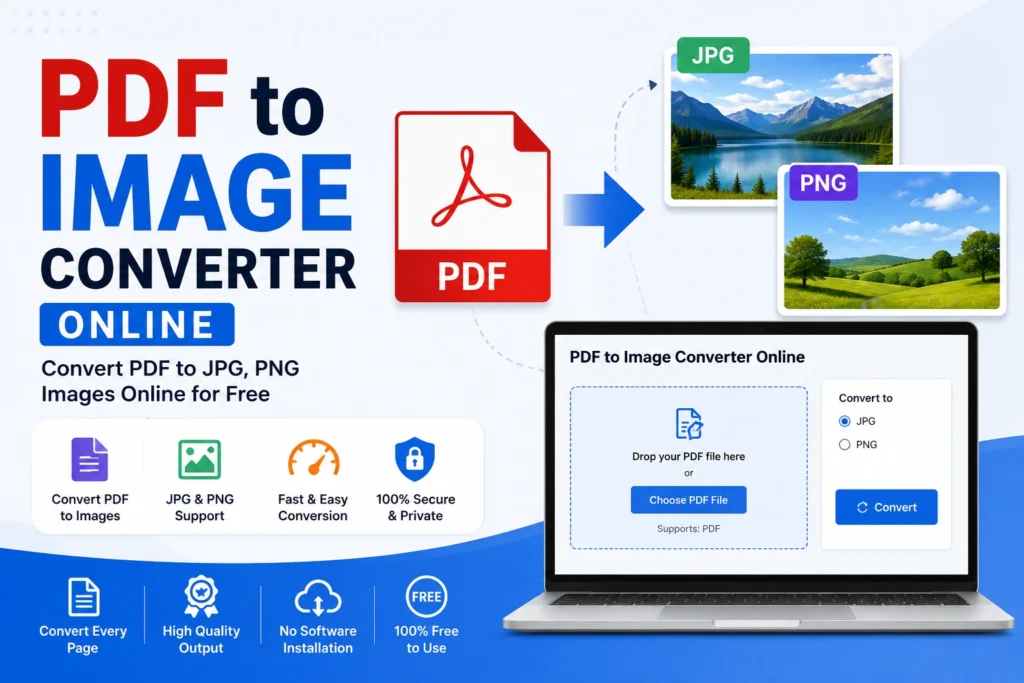
PDF to Image Converter Online: Turn Any PDF Page into a Sharp JPG in Seconds
Anyone who has ever tried to drop a PDF page straight into a presentation, a website, or a WhatsApp message knows the frustration: most platforms simply don't accept PDFs the way they accept a plain image. A PDF to image converter online tool solves this by turning any page of a PDF document into a JPG or PNG file you can upload, share, or edit anywhere a regular photo would work. This guide walks through why this conversion is needed so often, how a browser-based converter handles it without losing quality, and what to watch for so your output stays clear and usable.
Why You Need a PDF to Image Converter
PDF was designed as a format for preserving layout across devices and printers, not for the kind of casual sharing that images are built for. Social platforms, chat apps, image galleries, and many content management systems either reject PDF uploads outright or display them as a plain file icon instead of a visible preview. The moment you need to show a page rather than just deliver the document, the PDF format works against you.
This gap is exactly why so many people search for a reliable PDF to image converter online rather than trying to work around it with screenshots or print-to-file tricks. A screenshot of a PDF page is often blurry, cropped incorrectly, or stamped with browser toolbars and scrollbars that shouldn't be part of the final image. A dedicated converter instead renders the actual PDF page content at a controlled resolution, producing a clean image that looks like it was designed as a photo or graphic from the start, not a hasty screen capture.
The need spans a wide range of everyday situations: pulling a single slide out of a PDF report to paste into an email, converting a scanned certificate into a JPG for an online form, extracting a diagram from a manual to drop into a chat thread, or preparing a multi-page PDF as a set of individual images for a blog post. In each case, the underlying task is the same — take content that only exists as a PDF and turn it into a standard image file that any platform will accept without complaint.
How Our PDF to Image Converter Tool Works
Our PDF to image converter online tool is built to handle this conversion entirely inside your browser, with no account, no software installation, and no file ever needing to leave your device to a third-party server. You simply select your PDF, and the tool renders each page and prepares it as a downloadable image automatically.
- Upload your PDF: Select or drag-and-drop the PDF file from your device into the tool.
- Automatic page rendering: The tool reads every page of the document and renders it at a high internal resolution, preserving text sharpness and image clarity.
- Format and quality handling: Each rendered page is converted into a JPG (or PNG, where transparency matters) at a quality level chosen to keep both detail and file size sensible.
- Download the finished images: Save each page as its own image file, ready to upload, share, or edit anywhere you need it.
Because the rendering happens directly from the PDF's own internal structure rather than from a screenshot of how the page merely looks on screen, text stays crisp and vector graphics like logos, charts, and line art come out smooth rather than pixelated, even when the original PDF page is enlarged well beyond its printed size.
Benefits of Using an Online PDF to Image Converter
A dedicated PDF to image converter online tool offers several practical advantages over manual workarounds like screenshotting a page or printing a PDF to a virtual image printer:
| Benefit | Why It Matters |
|---|---|
| Preserves text and graphic sharpness | Renders directly from the PDF's content rather than capturing a lower-resolution screen view. |
| Handles multi-page documents in one pass | Converts every page automatically instead of requiring a separate screenshot for each one. |
| No leftover browser clutter | Produces a clean image of just the page content, without scrollbars, toolbars, or cropped edges. |
| Works entirely in the browser | No installation and no account, so it works the same way on a laptop as it does on a phone. |
| No cost | Free browser-based tools remove the need for paid desktop software for occasional conversions. |
These advantages are why people converting anything from scanned documents to design proofs consistently prefer a purpose-built PDF to image converter online tool over trying to recreate the same result with a screenshot or a printer driver.
PDF to Image Converter vs Other Methods
Some people try to get around the PDF-to-image problem by opening the file and taking a screenshot of each page, then cropping the result in a photo editor. This is workable for a single page but becomes tedious fast with longer documents, and the resulting image quality depends entirely on the screen resolution and zoom level at the moment the screenshot was taken, which often introduces blur or awkward cropping.
Others rely on a "print to PDF" or "print to image" driver built into their operating system, which technically produces an image but frequently rasterizes the page at a fixed, sometimes low, resolution that isn't controlled by the user. Text that looked sharp in the original PDF can come out visibly soft once flattened this way. A purpose-built PDF to image converter online tool avoids both of these compromises by rendering the page directly from the PDF's internal vector and text data at a resolution high enough to stay sharp even when the image is later resized or zoomed into.
There's also a meaningful difference in convenience. A browser-based converter processes the file the moment it's uploaded and lets pages be downloaded individually, which matters when only one or two pages out of a long document actually need to become images, rather than converting an entire file just to use a single page.
Step-by-Step Guide to the PDF to Image Converter
- Open the PDF to image converter tool in your browser on desktop or mobile.
- Upload your PDF file using the upload area or by dragging it directly into the drop zone.
- Let the tool render each page automatically, converting every page of the document into an image.
- Preview the rendered pages to confirm the text and graphics came through clearly.
- Download the pages you need, either individually or as a full set, depending on what the tool offers.
- Upload the resulting image wherever it's needed — a form, a chat, a presentation, or a webpage.
Common Situations Where This Is Needed
The need for a quick PDF-to-image conversion shows up constantly across work and everyday tasks. Students converting a page from a lecture PDF into an image to paste into study notes, job seekers turning a scanned certificate or mark sheet into a JPG for an online application form, and professionals pulling a single chart or table out of a longer report to drop into a slide deck or an email all run into the same underlying limitation of the PDF format.
Online forms are a particularly common trigger, since many application portals — from job applications to visa and exam forms — accept only JPG or PNG uploads for documents like certificates, ID proofs, or signatures, even when the source document only exists as a PDF. Designers and marketers converting a PDF brochure or proof into an image for a social media post, and small business owners turning an invoice or product spec sheet into a shareable image, are further everyday examples of the same need. In every one of these cases, having a fast, no-install PDF to image converter online tool bookmarked removes an otherwise repetitive manual step.
Choosing the Right Tool for the Job
Not every PDF-to-image tool handles quality the same way, so it's worth knowing what separates a good one from a mediocre one. Look for a tool that renders pages at a resolution meaningfully higher than standard screen resolution, since PDFs are often viewed or printed at larger sizes than a browser window, and a low-resolution render will look noticeably soft once the resulting image is enlarged or used at print size.
It also helps if the tool preserves text sharpness specifically, rather than only handling embedded photos well. Many PDFs are mostly text and vector graphics, and a converter that treats the whole page as a single flattened photo without care for font rendering can produce blurry or jagged letters, especially at smaller point sizes. Multi-page handling matters too: a tool that processes every page of a document in one upload, rather than requiring the file to be split first, saves considerable time on longer PDFs.
Finally, consider where the conversion actually happens. A tool that processes the PDF locally in your browser, rather than uploading it to a distant server first, is both faster for smaller files and generally preferable for anything containing sensitive or personal information, since the document never has to leave your device to be converted.
Avoiding Common Conversion Mistakes
A few habits before and during conversion can prevent a disappointing result. Starting from the original PDF rather than a photo of a printed copy of it preserves far more detail, since a photograph of a printout introduces its own blur, glare, and perspective distortion on top of whatever the PDF already contains. If only a photographed or scanned version is available, using the sharpest and most evenly lit scan possible gives the converter the best source material to work with.
It's also worth checking the output resolution against what the destination actually requires. A form that specifies a minimum image resolution or file size, for instance, needs the converted image checked against that requirement before submission, rather than assuming any JPG produced by a converter will automatically qualify. Similarly, when only specific pages of a longer PDF are actually needed, downloading just those pages instead of the entire converted set keeps the process quick and avoids clutter in your downloads folder.
Keeping a converted image saved for reuse, rather than re-uploading and reconverting the same PDF each time it's needed, can also save time for documents like certificates or ID scans that tend to get submitted to multiple forms or platforms over time. Preparing these conversions in advance, before a submission deadline, similarly reduces the chance of a rushed, low-quality result under time pressure.
Frequently Asked Questions About PDF to Image Converter
Is a PDF to image converter tool free to use?
Most browser-based converters, including this one, are free with no download or account required.
Can I convert a multi-page PDF into multiple images at once?
Yes, a well-built converter processes every page of the document automatically and lets you download each page as its own image file.
Will converting a PDF to JPG reduce its quality?
Some quality change is inherent to converting a vector-based format into a fixed-resolution image, but rendering at a high resolution keeps text and graphics looking sharp for most everyday uses.
What's the difference between converting to JPG versus PNG?
JPG generally produces a smaller file size and suits photos or scanned documents well, while PNG preserves transparency and tends to keep sharp-edged text or line art slightly crisper, at a larger file size.
Does the tool work on mobile phones?
Yes, the tool runs in any modern mobile browser, so you can convert a PDF page into an image directly from your phone without needing a computer.
Struggling to get a PDF page into a form, chat, or slide deck that only accepts images is a common but entirely solvable problem. With a dependable PDF to image converter online tool, turning any PDF page into a clean, ready-to-use JPG takes only a few seconds.