WebP to PNG Converter
Select WebP Image
(Lossless PNG Extraction)
More Production Tools
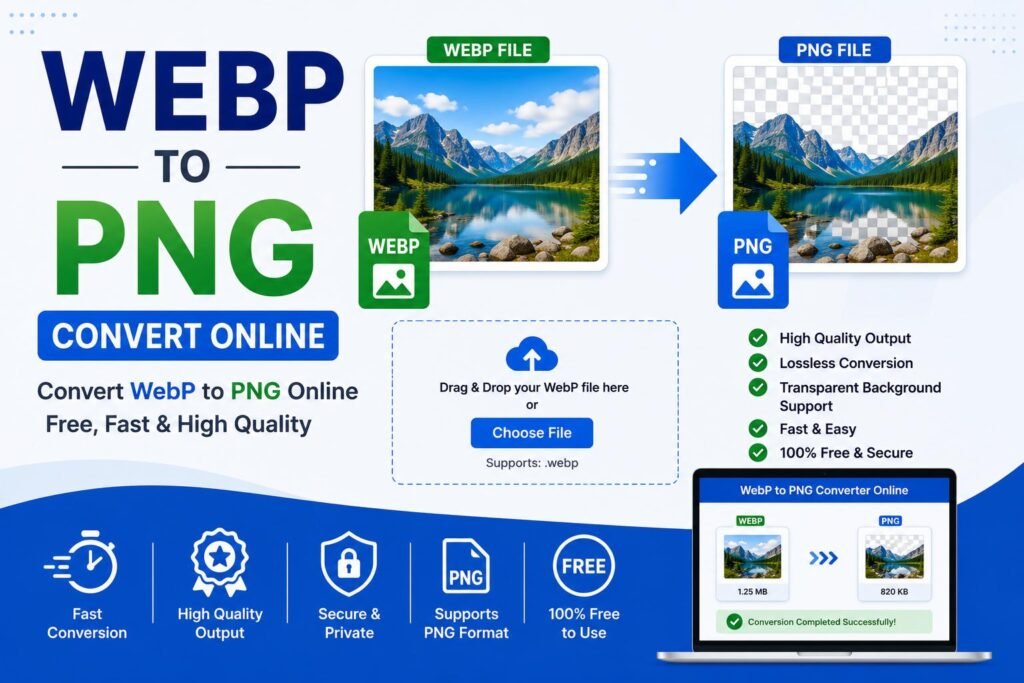
WebP to PNG Converter: Turn Any WebP Image into a Fully Compatible PNG
Modern websites increasingly serve their images in WebP format because it keeps pages loading quickly, but that same format becomes a real obstacle the moment you need transparency, layered editing, or simple universal compatibility that WebP doesn't reliably offer everywhere. A WebP to PNG converter tool solves this by taking any WebP image and turning it into a standard PNG file, one that preserves transparent backgrounds correctly and opens without a fuss in design software, older applications, and virtually any platform that expects a conventional image format. This guide explains why WebP-to-PNG conversion specifically comes up so often, how a dedicated converter handles transparency and quality properly, and what to check so your converted image looks exactly the way it should.
Why You Need a WebP to PNG Converter
WebP was designed to compress images efficiently for the web, and it can store transparency much like PNG does, but that doesn't mean every program or workflow treats a WebP file the same way a PNG would be treated. Many design tools, older editing software, some presentation programs, and a range of upload forms either don't recognize WebP at all or handle its transparency and layering inconsistently, while PNG remains the format almost universally trusted for images that need a transparent background or lossless detail preserved exactly.
This gap is exactly why so many people search for a dependable WebP to PNG converter tool the moment they download a logo, icon, or graphic from a website and find it saved as a `.webp` file instead of the `.png` their project actually needs. Saving a transparent icon from a website, downloading a graphic element for a design project, or pulling an image asset into a document or slide deck all commonly produce a WebP file today, and without converting it to PNG first, that transparency or fine detail can behave unpredictably once dropped into design software or a form that was really built with PNG in mind.
How Our WebP to PNG Converter Tool Works
Our WebP to PNG converter tool is built to handle this conversion entirely inside your browser, with no account, no software installation, and no need to understand image formats or transparency channels yourself. You upload your WebP image, and the tool converts it into a standard PNG automatically, preserving transparency wherever the original file had it.
- Upload your WebP file: Select or drag-and-drop the WebP image from your device into the tool.
- Automatic format conversion: The tool decodes the WebP image and re-encodes it as a standard PNG file.
- Transparency preservation: Any transparent or semi-transparent areas in the original WebP file carry over correctly into the PNG output.
- Download the converted image: Save the finished PNG, ready to use in design software, documents, or forms that expect a conventional image file.
Because the conversion works directly from the image's own pixel and alpha channel data rather than through an indirect workaround, the resulting PNG keeps the same visual detail and transparency as the original WebP file, just repackaged into a format that's recognized everywhere.
Benefits of Using an Online WebP to PNG Converter
A dedicated WebP to PNG converter tool offers several practical advantages over trying to work around an unsupported WebP file manually:
| Benefit | Why It Matters |
|---|---|
| Preserves transparency correctly | Keeps transparent and semi-transparent areas intact, unlike a lossy re-save that can flatten them. |
| Broad software compatibility | Produces a PNG file that design tools, older software, and most platforms open without issue. |
| No quality loss from re-compression | Converts to PNG's lossless format instead of compressing the image further. |
| Works entirely in the browser | No installation and no account, so it works the same way on a laptop as it does on a phone. |
| No cost | Free browser-based tools remove the need for paid software for a simple format conversion. |
These advantages are why so many people working with logos, icons, and other graphics downloaded from modern websites consistently prefer a purpose-built WebP to PNG converter tool over trying to force an unsupported WebP file into a workflow built around PNG.
WebP to PNG Converter vs Other Methods
Some people try to work around an unsupported WebP file by converting it to JPG instead, since JPG conversion tools are more commonly known. This fixes the compatibility problem but creates a new one: JPG doesn't support transparency at all, so any transparent background in the original WebP file gets flattened into a solid color, usually white, which ruins the image for anything that needed to sit on top of another background or design element.
Others try opening the WebP file directly in whatever design or editing software they already have installed, only to discover that many programs, particularly older versions of popular editing tools, don't support WebP as an input format at all and simply refuse to open the file. A purpose-built WebP to PNG converter tool avoids both of these problems at once, converting the file into a format that opens everywhere while correctly preserving any transparency the original image had, rather than trading one limitation for another.
There's also a meaningful difference in convenience. A browser-based converter handles the file the moment it's uploaded, without requiring any particular software already installed, which matters especially when working on a phone, a shared computer, or a machine where installing new design software just to open one WebP file isn't practical.
Step-by-Step Guide to the WebP to PNG Converter
- Open the WebP to PNG converter tool in your browser on desktop or mobile.
- Upload your WebP file using the upload area or by dragging it directly into the drop zone.
- Let the tool convert the file automatically, turning the WebP image into a standard PNG.
- Preview the converted image to confirm any transparency and detail came through correctly.
- Download the PNG file to your device.
- Use the PNG in whatever design tool, document, or form previously rejected the original WebP file.
Common Situations Where This Is Needed
The need for a quick WebP-to-PNG conversion comes up constantly now that so many websites serve icons, logos, and graphics in WebP format by default. A designer downloading a client's logo from their website to place into a new layout, a student saving a transparent diagram from a website for a presentation slide, and a small business owner pulling a product icon or badge graphic from a supplier's site for their own listing all run into the same underlying problem: the image looks fine in the browser, but the moment it needs a transparent background preserved somewhere else, WebP stops being reliable.
Presentation and document software is a particularly frequent trigger, since inserting a WebP image with a transparent background into a slide deck or a Word document can behave inconsistently depending on the software version, sometimes displaying a solid background block instead of the intended transparency. Web developers and content creators building a page or graphic that requires layered, editable images, and print or merchandise designers who need a transparent asset for a template, are further everyday examples of the same underlying need. In every one of these situations, having a fast, no-install WebP to PNG converter tool bookmarked removes what would otherwise be a recurring source of broken layouts and awkward white boxes where transparency should be.
Choosing the Right Tool for the Job
Not every WebP to PNG conversion tool treats transparency and quality the same way, so it's worth knowing what separates a good one from a mediocre one. Look for a tool that explicitly preserves the alpha channel, meaning any transparent or semi-transparent pixels in the original WebP file, rather than one that flattens the image onto a solid background during conversion without telling you. Since PNG is a lossless format, a good converter should also avoid introducing unnecessary compression artifacts during the conversion itself, keeping the output as close as possible to the original image's detail.
Consider where the conversion actually happens as well. A tool that processes the image locally in your browser, rather than uploading it to a distant server first, tends to be faster for typical image sizes and is generally preferable when the graphic contains anything proprietary or unreleased, such as an unpublished logo or design asset, since the file never has to leave your device to be converted. Finally, a good tool should handle the conversion in a single step without asking for unnecessary settings, since a straightforward format swap with correct transparency handling shouldn't require anything more than uploading the file and downloading the result.
Avoiding Common Conversion Mistakes
A few habits before and during conversion can help preserve the best possible result. Starting from the original WebP file rather than a screenshot or a re-saved copy of it keeps transparency and detail intact, since a screenshot typically flattens any transparent areas onto whatever background happened to be behind the image at the time. If the image was originally downloaded from a website, checking whether the site offers a direct PNG or SVG download option before converting can occasionally yield a cleaner result, particularly for simple logos and icons.
It's also worth previewing the converted PNG against a non-white background before relying on it for something like a layered design or a template, just to confirm the transparency carried over the way it should and didn't get filled in with an unwanted solid color. When only a specific portion of a larger WebP image is actually needed, cropping it down after conversion, rather than converting and using the entire original graphic, keeps the final file focused on just the asset required.
Keeping a converted PNG version saved for reuse, rather than re-converting the same WebP file every time it's needed again, can also save time for assets like logos, icons, or diagrams that tend to get used across multiple documents, slides, or design projects over time. Preparing these conversions ahead of a deadline, rather than discovering a transparency problem at the last minute while assembling a final design, similarly avoids unnecessary last-minute troubleshooting.
Frequently Asked Questions About WebP to PNG Converter
Is a WebP to PNG converter tool free to use?
Most browser-based converters, including this one, are free with no download or account required.
Why convert to PNG instead of JPG?
PNG preserves transparency, which JPG does not support at all, so any WebP image with a transparent background needs to become a PNG rather than a JPG to keep that transparency intact.
Will converting a WebP file to PNG reduce its quality?
PNG is a lossless format, so converting from WebP to PNG generally preserves the image's detail well, though the exact result depends on how the original WebP file itself was compressed.
What happens to transparency during the conversion?
A properly built converter reads the WebP file's transparency data directly and carries it over into the PNG's own alpha channel, so transparent and semi-transparent areas remain intact.
Does the tool work on mobile phones?
Yes, the tool runs in any modern mobile browser, so you can convert a WebP image into a PNG directly from your phone without needing a computer.
Downloading a graphic only to find its transparency breaks or the file won't open in your design software is a common but entirely solvable problem. With a dependable WebP to PNG converter tool, turning any WebP image into a fully compatible PNG takes only a few seconds.